
Find a spoken detail faster
A visible transcript can make it easier to scan for a name, topic, or phrase before returning to the relevant part of the video.
YouTube guide
When a video has captions available, YouTube can show its transcript directly in the video interface.
This is a reading guide for finding a transcript that YouTube makes available on a video. It does not fetch, generate, download, or guarantee a transcript.
Step 1
Open the YouTube video in a desktop browser. In the video details area, use the more-options control to look for Show transcript.
Step 2
Some videos offer more than one caption track. Choose the track you need before copying notes or quoting timestamps.
Step 3
A transcript is not available for every video. The creator may not have captions enabled, or YouTube may not offer an automatic caption track for that video.
Before you begin
When captions are available, the transcript can help a viewer take notes, locate a spoken point, or return to a moment without manually replaying every section.
A visible transcript can make it easier to scan for a name, topic, or phrase before returning to the relevant part of the video.
Use the transcript to identify the moment you need, then create a timestamp link when you want to share that exact section with someone else.
Whether a transcript appears depends on the video and YouTube’s caption options. This guide does not imply that every video has one.
Automatic captions can contain errors. Check quoted text against the video when accuracy matters for notes, citations, or a public response.
Workflow
Use the actual video page, not a search preview. The transcript option, when available, is found in the video interface and can differ by device or layout.
Look in the details or more-options area for a transcript control. If the control is absent, the video may not have a transcript available to view.
Some videos provide more than one caption track. Choose the language that matches your notes or the audience you are trying to understand.
Use the transcript as navigation or notes, then replay the section when a name, number, quotation, or instruction needs to be exact.
In depth
A YouTube transcript is shown through YouTube when captions are available for that particular video. This page explains where to look for it and how to use it; it does not create captions or provide access to private caption data. This page is designed to help with one focused task, so the most useful outcome comes from giving the tool a clear input and then applying judgement to what it returns.
A YouTube transcript is shown through YouTube when captions are available for that particular video. This page explains where to look for it and how to use it; it does not create captions or provide access to private caption data. A focused workflow is more useful than trying to solve every creator task in one pass. It gives you a clear point to start from, a visible result to inspect, and a practical reason to decide what to do next. That is especially helpful when the video, channel, or audience context contains details that a short prompt or URL cannot fully express.
Treat the result as working material for the next decision, not as a substitute for knowing your own video or audience. Keep the original source nearby, compare the output with what you can see on YouTube, and make the final edit yourself. This keeps the process understandable and makes it easier to notice when an input is incomplete, too broad, or aimed at the wrong task.
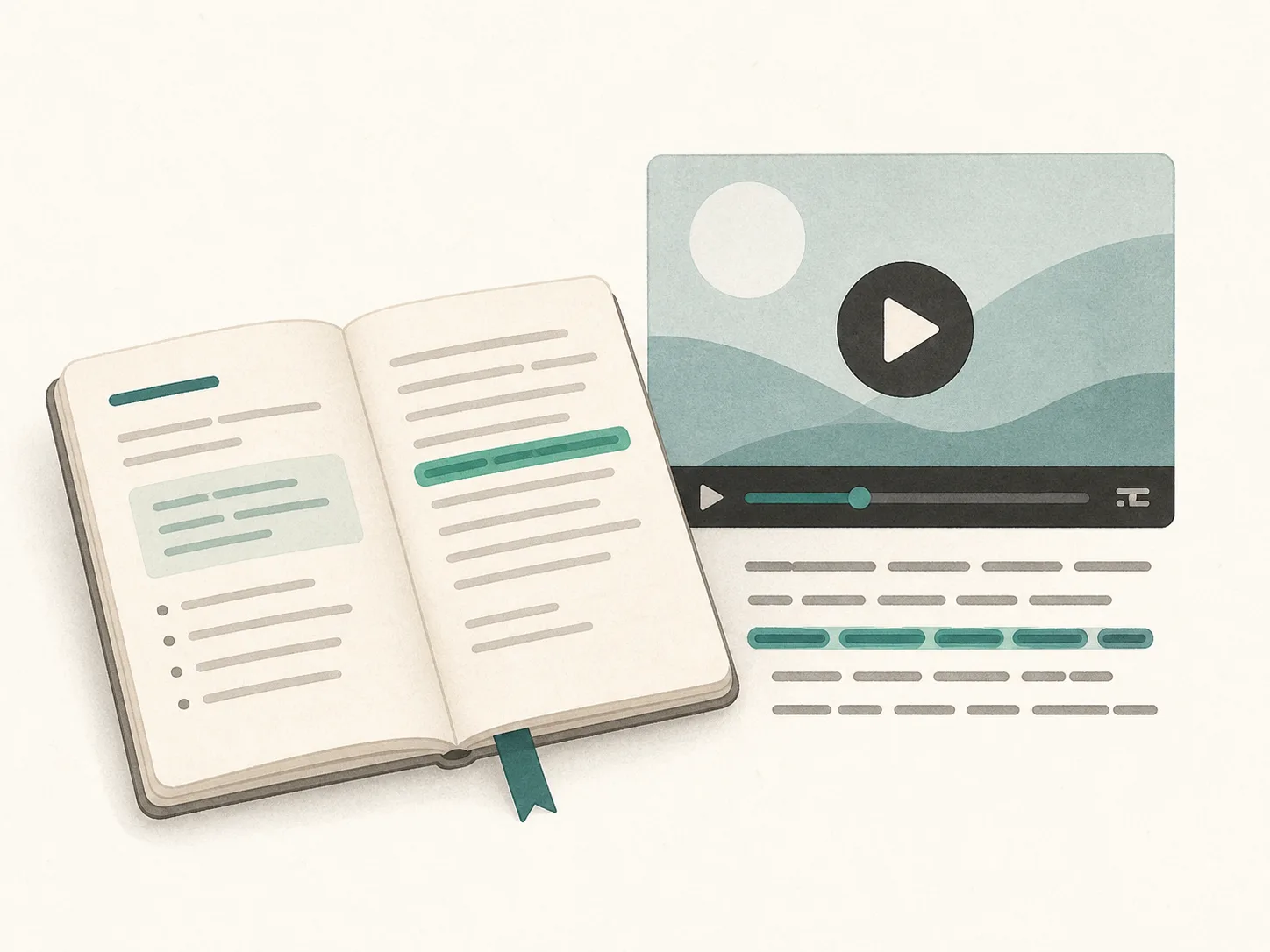
Open the specific video you want to review and decide why you need the transcript. You may be locating an idea, taking notes, checking a spoken name, or preparing a timestamp for a collaborator. Small details change the quality of a practical result: a precise URL instead of a search result page, a concrete topic instead of a single broad word, or a stated viewing context instead of an unstated assumption. Before pressing the main action, check that the input represents the exact item you mean to work with.
It also helps to decide what a useful result should answer before you begin. For example, you may want a link that opens at one moment, a compact list of public matches, or several draft ideas to compare. When the desired output is clear, you can reject irrelevant results quickly instead of adapting them after the fact.
A transcript is useful for finding a likely moment, but automatic speech recognition may mishear names, technical terms, accents, or numbers. Replay the clip when the wording will be quoted or relied on. Read the output in the context in which it will be used. A title, description, tag, or hashtag should still sound like the video it represents. A public lookup should still be checked against the destination it links to. A calculated figure should remain tied to the values you chose. The tool can make the first pass faster, but it cannot make an editorial or business decision for you.
A good review is short and deliberate. Remove anything that is inaccurate, too vague, duplicated, or inconsistent with the video. Prefer specific language over inflated promises, and do not keep an option simply because it was generated or returned by a search. The final version should be something you can stand behind when a viewer opens the page, video, or link.
A missing transcript control does not mean this guide failed. The creator may not have captions enabled, a caption track may not be available, or YouTube may not present a transcript for that video. Keeping that boundary visible prevents the page from promising data or actions it does not perform. It also makes the workflow easier to repeat: use the tool for its narrow job, preserve the source context, and move to the next relevant tool only when it helps complete a real creator task.
If the result is not what you expected, start by improving the input rather than assuming there is a hidden setting. Use a more specific query, a canonical YouTube URL, a clearer description of the video, or a realistic assumption. A narrow, transparent workflow is usually faster to correct than a broad one with ambiguous results.
FAQ
No. It is a guide to the transcript option that YouTube may display for a video with available captions.
Transcript availability depends on the individual video, its caption tracks, and the YouTube interface. Some videos simply do not offer the option.
No. Check important wording against playback, especially names, numbers, product terms, or a quotation you plan to reuse.
Use the timestamp link generator with the video URL and the time where the relevant passage begins, then open the result once to confirm it starts at the correct place.